Beginner's Guide

Welcome to Pophie

Pophie is a living AI companion that can interact with you through vision, voice, movement, touch feedback, and memory. Before your first use, complete charging, power-on, App download, device binding, and Wi-Fi setup. After setup, you can talk with Pophie, try reminders, take photos, find common objects, and explore her daily companionship features.

1. Check what is in the box

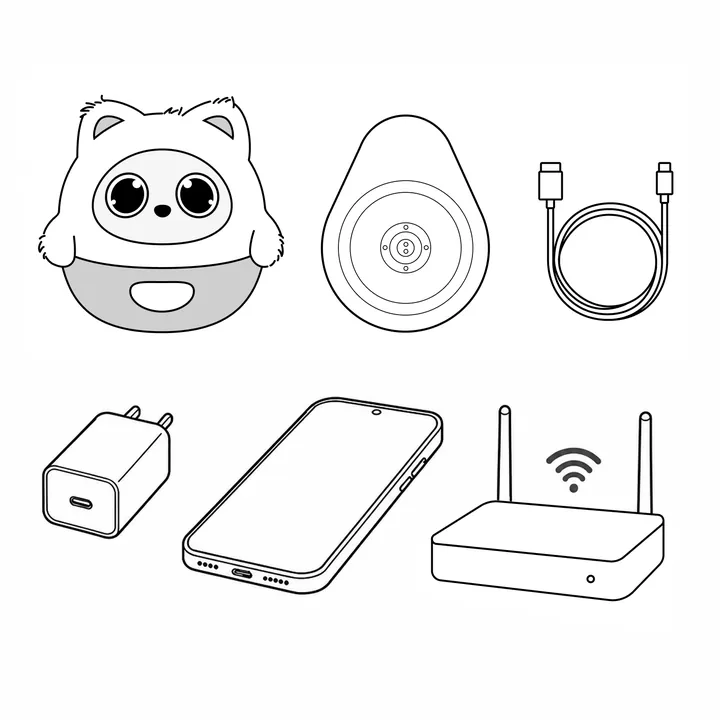
After unboxing, confirm that the main items are included:

  • Pophie device
  • Charging base
  • Type-C charging cable
  • Power adapter or recommended adapter instructions
  • Quick start materials

If anything is missing, visibly damaged, or cannot be used normally, keep the packaging, photos, and purchase information, then contact Pophie Support.

2. Get to know Pophie

Pophie uses multiple parts to interact and show her status:

  • Eyes: emotions, gaze direction, sleep status, and privacy status
  • Camera / visual sensing area: people, expressions, objects, and surroundings
  • Microphones: wake word, voice commands, and conversations
  • Touch sensing areas: petting, gentle patting, holding, and motion feedback
  • Pocket Light: speaking status, emotions, and device status
  • Charging base: charging and automatic power-on

Place Pophie on a flat, dry, stable, and ventilated desk. Avoid table edges, thick carpets, cushions, and uneven surfaces.

3. Charge and power on

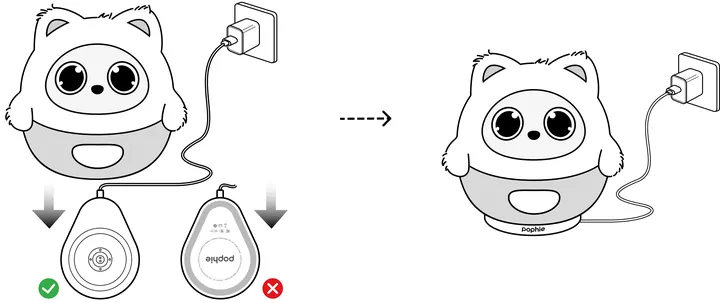
Use a recommended 5V/3A power adapter with the Type-C cable to connect the charging base. Lower-power adapters may extend charging time or provide insufficient power.

Power on:

  1. Connect the charging base to power.
  2. Place Pophie on the powered base.
  3. Pophie will power on automatically.

For a more stable experience, keep Pophie connected to power during use. When fully charged, she can also interact for a period of time away from the base. To power off while online, say: “Pophie, power off.” For forced shutdown, use a SIM ejector tool in the bottom power-off pinhole.

4. Download the App and bind your device

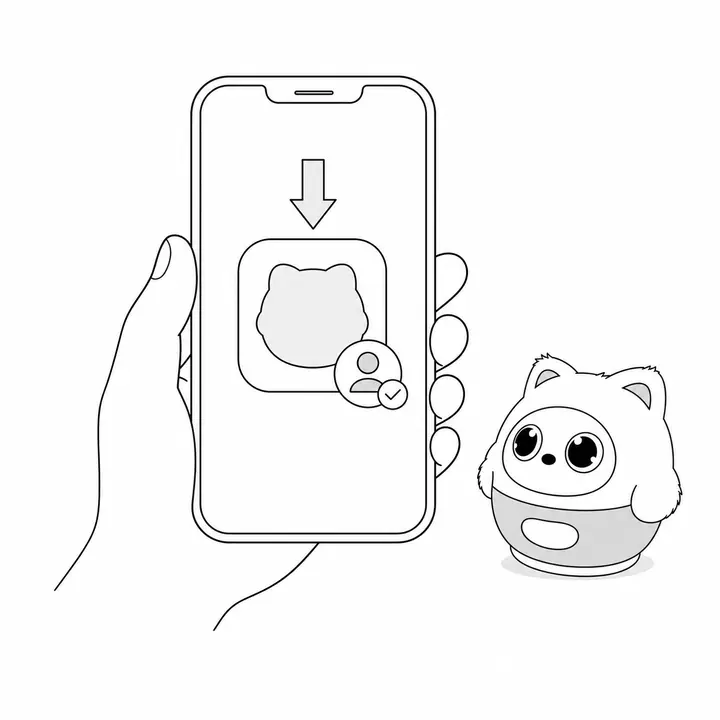
Install the Pophie App from the Apple App Store on iPhone, or from Google Play on Android. Then sign in or create an account and follow the in-app instructions to add your device.

Basic flow:

  1. Open the Pophie App.
  2. Sign in or create an account.
  3. Choose to add a device.
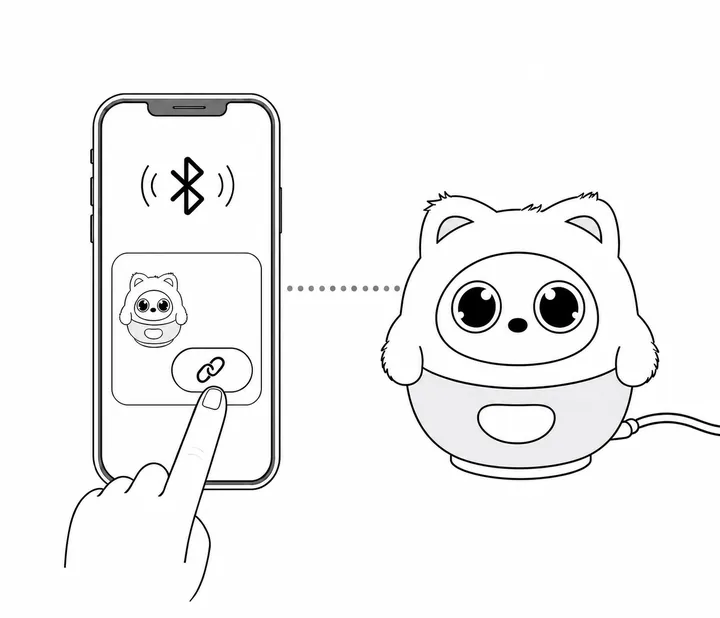
  4. Keep your phone near Pophie.
  5. Follow the App instructions to complete binding and network setup.

You can manage device settings, privacy settings, photos, subscription, and device information in the App. For activation status, warranty information, subscription service, or SN-related information, use the App or the official device information page. Pophie Support AI will not directly display your personal device information.

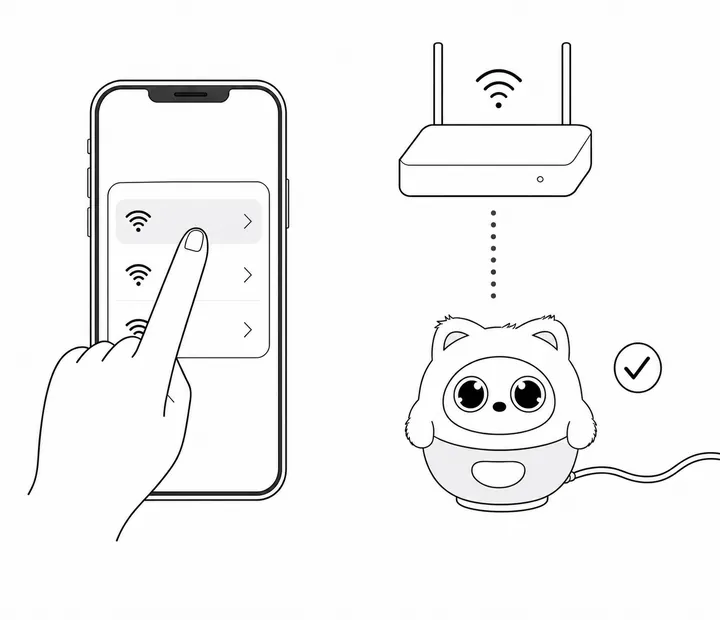
5. Connect to Wi-Fi

To use full conversation, vision, and online features, complete Wi-Fi setup first.

Network requirements:

  • Supports 2.4GHz and 5GHz Wi-Fi
  • Supports mobile hotspots
  • Does not support networks that require web login, such as some hotel, campus, corporate, or public Wi-Fi networks

First setup tips:

  • Keep your phone and Pophie near the router.
  • Make sure Bluetooth is enabled on your phone.
  • Choose a stable Wi-Fi network.
  • Avoid weak signal, strong interference, or restricted networks.

Offline, Pophie may still keep some local interactions, but conversation, visual understanding, and online features will be limited. If setup fails, check the network type, Bluetooth, router distance, and password. If the issue remains, see Troubleshooting or contact Pophie Support.

6. Start your first conversation

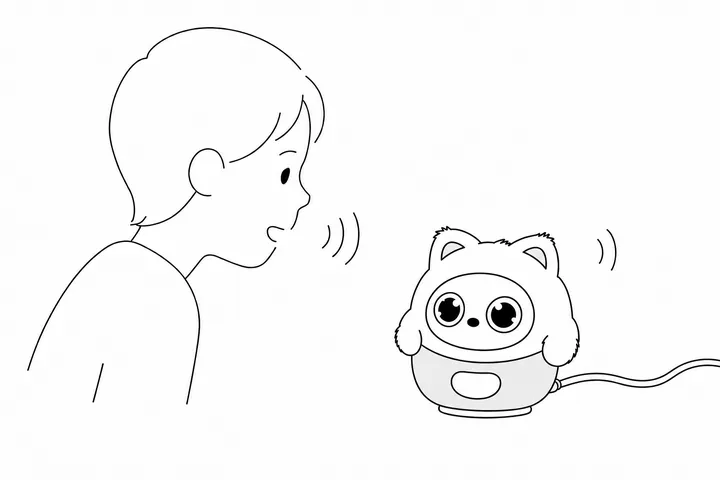
After Wi-Fi setup, you can start interacting with Pophie.

Wake methods:

  • Say the wake word: “Pophie”
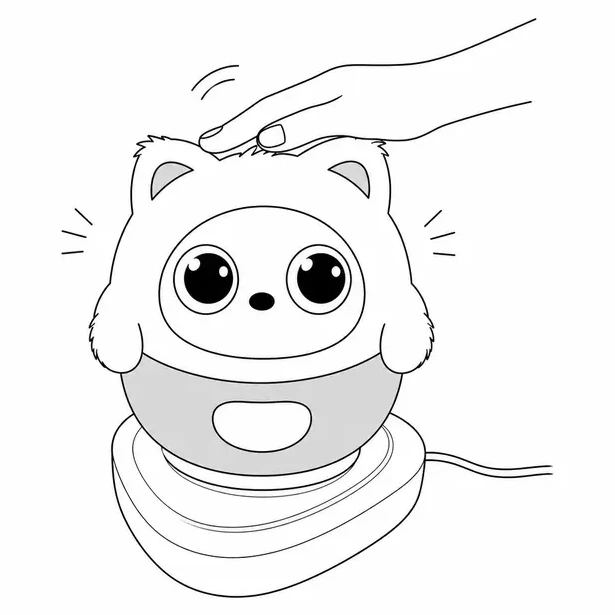
  • Gently pat her
  • Use a nickname you have set

Try saying:

  • “Pophie, hello.”
  • “Pophie, what can you do?”
  • “Pophie, tell me a story.”
  • “Pophie, remind me to drink water at 8 PM.”
  • “Pophie, take a photo for me.”

During one interaction, you do not need to repeat the wake word every sentence. Pophie will keep listening and responding when appropriate. If she determines you are talking to someone else, on a phone call, or that background noise is not directed at her, she may not join in.

7. Try touch and companionship interactions

Pophie is more than a Q&A tool. She expresses her state through eyes, movements, sounds, and Pocket Light, and responds to touch and posture changes.

You can try:

  • Looking at her while speaking and observing eye contact
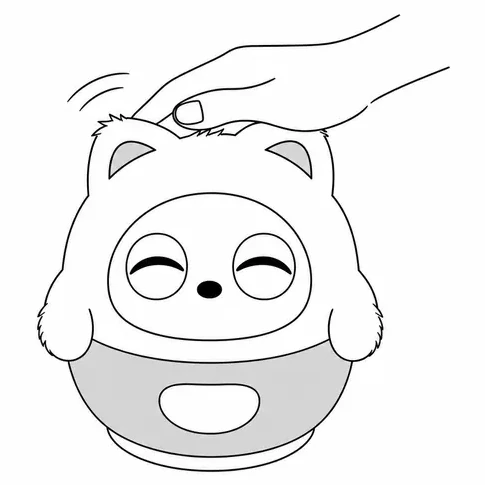
  • Gently petting her back or sides
  • Holding her to see a quieter interaction state
  • Gently patting her to wake or interact
  • Softly stroking her for a more relaxed or sleepy state

Avoid continuous forceful squeezing, vigorous shaking, impact, or blocking sensing areas. Strong stimulation may trigger tense, resistant, or defensive feedback and may affect recognition.

8. Understand Pophie's vision

Pophie can use vision to perceive you and the surrounding environment for more natural interaction.

She can:

  • Recognize faces, expressions, and posture-based emotional cues
  • Understand common objects, room scenes, and environmental changes
  • Read clearly visible text on packaging, menus, books, or cards
  • Use visual information to support conversations and interactions

Usage tips:

  • Use Pophie indoors with enough even lighting.
  • Avoid direct strong light on the camera.
  • Avoid heavy backlighting.
  • Keep the person or object within her visible range.

9. Take and manage photos

You can ask Pophie to take photos by voice, such as:

  • “Pophie, take a photo for me.”
  • “Pophie, take a picture.”

Photos can be viewed in the App. Depending on settings, you can save them locally to your phone or delete them.

If active capture is enabled, Pophie can automatically take photos when she recognizes joyful moments such as smiling faces, heart gestures, or displayed creations. Active capture must be enabled in the App and has a cooldown period after each shot. It will not trigger in Privacy Mode. In the current version, Pophie may say “3, 2, 1” before taking a photo, with a few seconds of delay. This is normal.

10. Set reminders and daily care

You can use natural language to set reminders, for example:

  • “Pophie, remind me to take medicine at 8 PM.”
  • “Pophie, remind me to drink water in 30 minutes.”

When a reminder is due, Pophie can remind you, and the phone App may also send a push notification. If you are speaking, she will usually try to wait until the current conversation ends naturally before reminding you.

Pophie also supports companionship-style care such as sedentary reminders, contextual care, and white noise for sleep. Some features may require setup or activation in the App.

11. Find common objects

Pophie can help find common objects within her camera's visible range, such as keys, glasses, phones, or remote controls.

You can say:

  • “Pophie, help me find my keys.”
  • “Pophie, where is my phone?”

If recognized, Pophie will describe where the object probably is. Object finding depends on viewing angle, lighting, occlusion, and object position. If the target is outside the camera's visible range, she may not be able to find it.

12. Set language preference

Pophie supports 12 languages:

  • English
  • Mandarin Chinese
  • German
  • French
  • Italian
  • Spanish
  • Portuguese
  • Dutch
  • Polish
  • Japanese
  • Korean
  • Arabic

You can directly tell Pophie which language you want her to use. She can also switch response language upon request. For a more stable experience, use clear and natural language when setting your preference.

13. Make Pophie quiet for a moment

If you do not want Pophie to interrupt the current environment, you can use natural language or a “shh” gesture to make her stay quiet.

You can say:

  • “Pophie, be quiet for a moment.”
  • “Pophie, please stay quiet.”

You can also use a “shh” gesture. Pophie will try to enter a quieter state and reduce interruptions. To resume interaction, wake her again or speak to her while facing her.

14. Sleep and wake

You can ask Pophie to sleep with natural language:

  • “Pophie, go to sleep.”
  • “Good night, Pophie.”

You can also gently stroke her for a while to help her relax or become sleepy.

Wake methods include:

  • Say the wake word: “Pophie”
  • Gently pat her
  • Hold or gently move her
  • Use related controls in the App

If Pophie does not respond promptly, check whether she is powered on, connected to the network, in Privacy Mode or Guard Mode, has enough battery, or is in a noisy environment.

15. Privacy and safety

Pophie's privacy status can be shown through her eyes, behavior, and settings. You can use voice commands for some privacy actions:

  • “Close your eyes.”
  • “Turn around.”
  • “Stop sensing.”

Please note:

  • When Pophie closes her eyes, video images are not uploaded.
  • Audio may still be used for cloud processing.
  • Active photo capture must be enabled in the App.
  • Active capture will not trigger in Privacy Mode.
  • User-requested photos can be viewed and managed in the App.

Do not enable sensing or photo features in inappropriate situations. You can manage privacy settings in the App.

16. Daily care and usage environment

To keep a good experience:

  • Place Pophie on a flat, dry, ventilated desk.
  • Keep her away from table edges to prevent falls.
  • Avoid direct strong light on the camera.
  • Avoid long exposure to loud TVs, speakers, or other noise sources.
  • Do not let liquids touch the device.
  • Keep battery and network stable during software updates.
  • Clean plush outfits according to official care instructions.

If Pocket Light, eyes, sound, movements, or App status appear abnormal, check Troubleshooting first.

17. What you can manage in the App

In the Pophie App, you can manage:

  • Wi-Fi and device connection
  • Privacy settings
  • Photo viewing and management
  • Reminders and selected feature settings
  • Subscription service
  • Device information
  • Device status and updates

For activation status, warranty status, subscription benefits, or SN-related information, use the App or the official device information page.

18. Need help?

If you run into a problem, you can first check:

  • Beginner's Guide
  • Full User Manual
  • Troubleshooting
  • Device Information page
  • Order Status page
  • After-sales policy
  • Pophie Support AI

If the issue is still not resolved, please contact support@pophie.com. The Pophie team will reply by email within about 48 hours.